📱 A message icon is one of those things you look at every single day without ever really thinking about it. But the moment something seems off—a checkmark doesn’t turn blue, a red exclamation mark appears, or a mysterious lock icon shows up—suddenly those tiny symbols matter a lot. The truth is that “message icon” can mean two completely different things depending on where you’re looking. It might be the app logo on your home screen, or it might be the status indicator next to a message you just sent. Understanding both is essential for navigating modern communication without confusion.
This guide breaks down every message icon you’re likely to encounter, explains what each one means across different apps, and helps you avoid the common misunderstandings that lead to unnecessary worry.
📲 The App Icon: What You Tap to Start Messaging
Before diving into the tiny symbols inside your chats, it helps to understand the icon you tap to open your messaging app in the first place. These vary by platform and can sometimes be confusing, especially if you’ve switched phones recently.
iPhone: The Green Speech Bubble
On an iPhone, the Messages app icon is a green background with a white speech bubble . This single app handles two different types of messages: iMessage (blue bubbles) for Apple-to-Apple communication, and SMS/MMS (green bubbles) for everyone else . The icon stays the same regardless of which type you’re sending, which is why the bubble color inside the chat is the real indicator of what’s happening.
Android: Google Messages and Beyond
On most modern Android phones, the default messaging app is Google Messages, which features a blue background with white speech bubbles . However, some carriers still preload their own messaging apps with distinct icons featuring carrier branding or different color schemes . If you’re unsure which app you’re using, check the name below the icon on your home screen.
✅ Status Icons: What Your Sent Messages Are Telling You
Here’s where things get interesting. Once you send a message, the icon next to it tells you exactly what happened to it—whether it left your phone, reached the recipient’s device, or was actually read. The problem is that every app uses different symbols, and confusing them can lead to unnecessary anxiety.
Google Messages (Android/RCS)
Google Messages uses a four-stage system for tracking your sent messages, but it only works fully when both you and the recipient have RCS (Rich Communication Services) enabled .
Timer/Stopwatch: The message is currently in the process of being sent . You’ll usually only see this for a moment unless your connection is slow.
Single Check (✓): The message has been sent from your phone successfully . It’s on its way, but hasn’t necessarily reached the recipient yet.
Double Check (✓✓): The message has been delivered to the recipient’s device . Their phone has received it, but they may not have opened it.
Filled/Colored Double Check: The recipient has read your message . This only appears if they have read receipts turned on. If they’ve disabled read receipts, you’ll never see this icon, no matter how many times they open your message.
WhatsApp’s system is the most famous, and it’s slightly different from Google’s .
Clock Icon: The message hasn’t been sent yet, usually due to a connectivity issue .
Single Gray Check: The message has been sent to WhatsApp’s servers, but hasn’t reached the recipient’s phone yet . This could mean their phone is off, they have no internet, or they haven’t opened WhatsApp recently.
Double Gray Check: The message has been delivered to the recipient’s phone, but they haven’t read it yet .
Double Blue Check: The recipient has opened and read your message . In group chats, this only appears when everyone has read the message.
Facebook Messenger
Messenger uses a circle-based system that changes depending on whether you’re on Android or iOS, which makes it one of the most confusing apps to decode .
Empty/Open Circle: The message is in the process of sending .
Circle with a Check: The message has been sent from your device .
Filled Circle with a Check: The message has been delivered to the recipient .
Recipient’s Profile Picture: The person has seen and read your message . Unlike WhatsApp, Messenger only shows the read indicator on the most recent message in a conversation, not on every single one.
Snapchat
Snapchat’s icons are entirely its own language, and they distinguish between Snaps (photos/videos) and Chats (text) .
Grey Icon: Depending on privacy settings, this can mean a friend request is still pending .
🔒 Other Icons You’ll See Inside Chats
Beyond the status indicators, messaging apps use several other icons that carry important meaning.
The Lock Icon
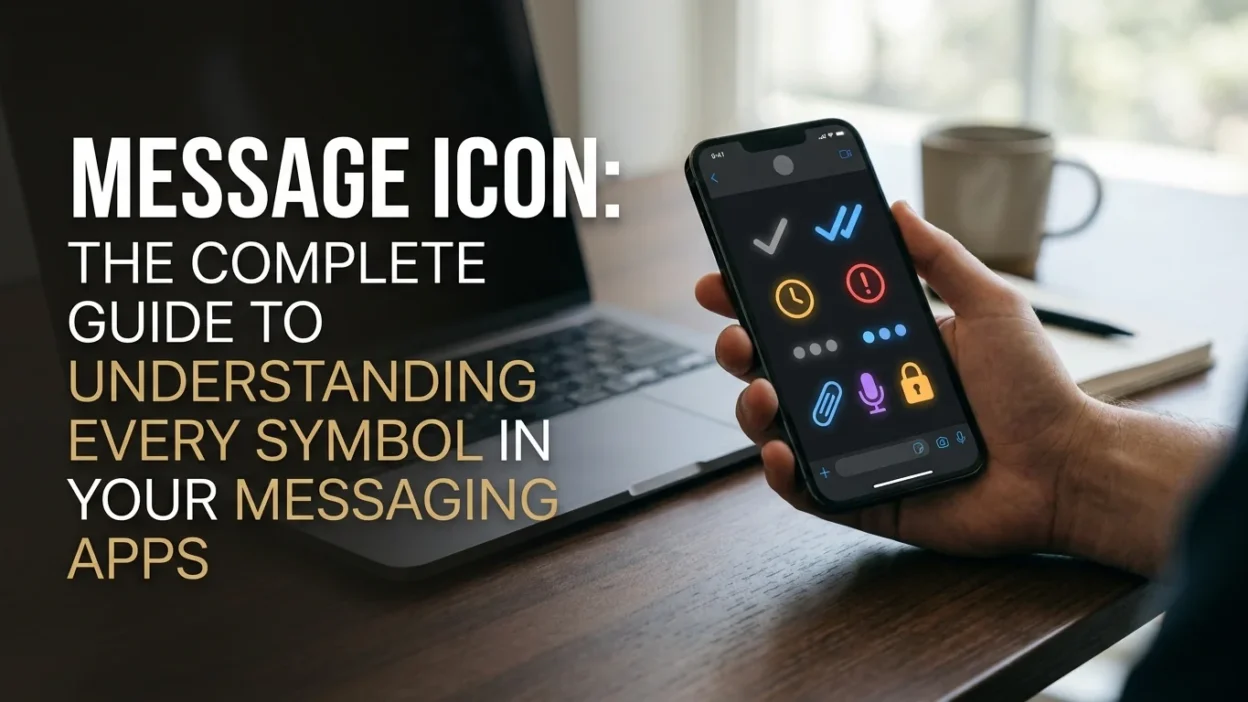
A lock icon indicates that the conversation is end-to-end encrypted. In Google Messages, you’ll see a lock next to the send button or message timestamp when encryption is active . This means only you and the recipient can read the messages—not even Google or your carrier can see the content. If the lock disappears, your messages are falling back to standard SMS, which is not encrypted .
The Red Exclamation Mark
A red exclamation mark or triangle means the message failed to send . This could be due to a poor connection, an invalid phone number, or a lapsed cellular plan. It’s one of the few icons that universally signals a problem across almost all messaging apps.
The Typing Indicator
Those three bouncing dots mean the other person is currently typing a reply . It’s a small but powerful social cue—it tells you to wait a moment rather than putting your phone down.
The Blue Dot or Bubble (Google Messages)
In Google Messages, a small blue chat bubble or blue dot next to a contact’s name means the conversation is using RCS rather than SMS . This is generally good news—it means you have access to read receipts, typing indicators, and higher-quality media sharing. If the bubble disappears, you’ve fallen back to SMS.
❌ Common Mistakes to Avoid
Understanding the icons is one thing. Misinterpreting them is another. Here are the errors people make most often.
Mistake 1: Assuming “Delivered” Means “Read”
This is the most common source of anxiety in modern texting. A double checkmark (on WhatsApp or Google Messages) means the message reached the recipient’s phone. It does not mean they’ve seen it . They might be busy, their phone might be face-down, or they might have notifications silenced. Don’t spiral.
Mistake 2: Panicking When the Blue Checks Never Appear
If your double checks stay gray forever, it doesn’t necessarily mean you’ve been blocked. The recipient might have read receipts turned off, which prevents the blue checks from ever appearing . They might also simply not have opened the chat. Assuming the worst without evidence only creates unnecessary stress.
Mistake 3: Confusing the App Icon with a Status Icon
The green speech bubble on your home screen is just the app logo. The blue checkmarks inside the chat are status indicators. They serve entirely different purposes and shouldn’t be confused. If someone says “the message icon is green,” they’re probably talking about the app, not a status.
Mistake 4: Ignoring the Lock
If you’re sending sensitive information and you don’t see a lock icon, your messages aren’t encrypted. This matters for passwords, financial details, or anything you’d want to keep private. Take a second to check before hitting send .
💡 Expert Tips for Navigating Message Icons
Here are some practical strategies for staying on top of all these symbols.
Know Which App You’re Using
The same symbol can mean different things in different apps. A double check in WhatsApp means “delivered,” but a double check in Google Messages means the same thing. However, the colors and exact shapes vary. Take a moment to confirm which app you’re in before interpreting the icon.
Check Your Read Receipt Settings
If you’re frustrated that you never see blue checks from certain people, they may have read receipts disabled. You can’t force them to turn it on. Accept it and move on. Similarly, if you’ve disabled your own read receipts, others won’t see blue checks from you either.
Use the Icons as Information, Not Judgment
A gray double check doesn’t mean someone is ignoring you. It means their phone received the message and they haven’t opened the chat yet. Life happens. The icons are tools, not verdicts on your relationships.
❓ Frequently Asked Questions
What does a single checkmark mean on a text message?
A single checkmark usually means the message has been sent from your phone but hasn’t yet been delivered to the recipient . In WhatsApp, it specifically means the message left your device and is on its way to WhatsApp’s servers.
What does a double checkmark mean?
A double checkmark typically means the message has been delivered to the recipient’s phone . It does not mean they’ve read it. If the double checkmarks turn blue (in WhatsApp) or filled (in Google Messages), that’s when it means “read.”
Why are my WhatsApp checks always gray?
If your double checks never turn blue, the recipient likely has read receipts turned off in their WhatsApp settings . They might be reading your messages without the app notifying you. You can’t override this setting on their end.
What does the lock icon mean in Google Messages?
The lock icon means the conversation is end-to-end encrypted . Only you and the recipient can read the messages. If the lock is missing, your messages are being sent as standard SMS, which is not encrypted.
What does a red exclamation mark mean?
A red exclamation mark means the message failed to send . This could be due to a poor connection, an invalid number, or a problem with your cellular plan. Try resending the message or checking your connection.
What do the Snapchat arrows and boxes mean?
Snapchat uses filled blue arrows for sent Chats, outlined blue arrows for opened Chats, filled blue boxes for unread Chats, and outlined blue boxes for viewed Chats . Grey icons can indicate a pending friend request depending on your privacy settings.
What does the typing indicator (three dots) mean?
The three bouncing dots mean the other person is currently typing a reply . It’s a real-time indicator that they’re actively engaged in the conversation.
Why don’t I see any checkmarks on my Android messages?
If you don’t see checkmarks at all, your conversation is likely using standard SMS rather than RCS . SMS doesn’t support the same delivery and read receipt system that RCS does. You can check if RCS is enabled in Google Messages settings.
✅ Conclusion
Message icons are a language of their own, and like any language, they take a little practice to master. The app icon on your home screen tells you where to tap. The status icons inside your chats tell you what happened to your message. The lock icon tells you whether your conversation is private. And the red exclamation mark tells you when something went wrong.
The key is to remember that context matters. A double check in WhatsApp means something slightly different from a double check in Google Messages, and a profile picture in Messenger means something different from a blue check in WhatsApp. Learn the icons for the apps you actually use, check your read receipt settings so you know what to expect, and don’t let a gray checkmark ruin your day. These symbols are tools to help you communicate, not tests of your relationships.

Mr. Abdullah is a passionate writer who creates engaging, helpful, and easy-to-understand content for readers. He enjoys sharing fresh ideas, useful insights, and inspiring stories through MessageWritingHub.